Tekari
A BSDF-data visualization and editing tool.
Screenshot
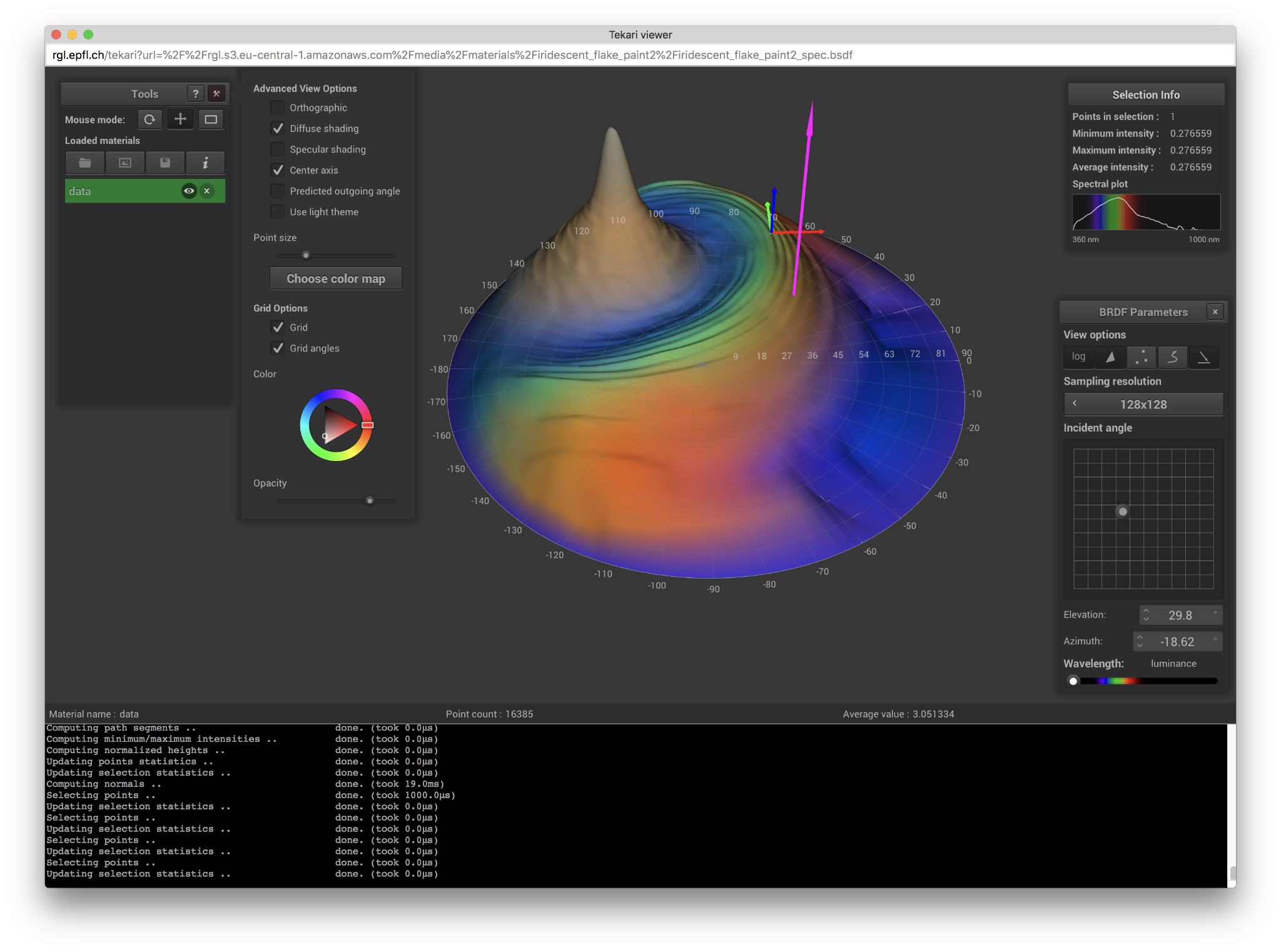 A example of workflow with Tekari, with multiple files open, some points selected and the color map selection window displayed.
Usage
Command Line
You can launch Tekari in the command line and specify data samples to be loaded as command-line arguments:
./tekari data_set_1 data_set_2 ...
This will launch Tekari and open the specified files, assuming they are in the correct format (see file format).
Graphical User Interface
To get started using Tekari, you first need to load a file, either using the command line, pressing the open file button (folder icon), or using Ctrl-O. Once you have a data sample loaded, you can interact with it in many ways:
- look at it from any angle (by left-dragging the mouse on the canvas)
- zoom in and out (using the mouse wheel)
- translate it (by middle-dragging the mouse)
- or also slect points (by right-dragging the mouse)
These are just the basics features that allow you to take a closer look at your data. If you want a more detailed explanation of the features (and associated shortcuts) supported by Tekari, you can just click the help button (top right of the tools window) or just press 'H' to bring up the help window. Hovering over any gui element will also display an helpful tooltip.
File-Format
The two file formats Tekari supports are:
- standard or spectral data samples: these are texte files containing raw BSDF measurements generated by pgII.
- bsdf files: binary files with the .bsdf extension, computed from measurements and processed following the paper by Jonathan Dupuy and Wenzel Jakob.